Calling up Webserver
1 | Language selection |
2 | Inverter notifications (e.g. status message for solar portal connection) and events. New |
3 | Name of the inverter |
4 | Retrieval of device information |
5 | Login as plant owner or installer |
6 | Reset password for Webserver |
The web server acts as the inverter’s graphical interface to the user. Even without logging in, you can access information about your PV system here. This includes, for example, device information and the latest notifications or events relating to the inverter.
The web server is accessed via a web browser (e.g. Microsoft Edge, Firefox or Google Chrome) on the inverter. For this, both devices must be on the same network. Any device (e.g. a PC, smartphone or tablet) that has a web browser can be used to access the web server.
Enter the IP address or the name of the inverter into the web browser. The inverter’s IP address is shown on the inverter’s display.
A user can log in to the web server as a system operator or installer via the ‘Login’ option.
To log in as a system operator, you will need a password, which must be generated via the ‘Forgotten password’ button when logging in for the first time. You will also need the master key from the type plate.
To log in as an installer, you will need the master key from the inverter’s type plate and your service code. You can find your personal installer service code (PARAKO password) in your user account under ‘My Profile’ in the KOSTAL Solar Terminal. This requires the ‘Installation’ or ‘Admin’ user role.
Changing Webserver password for plant owner
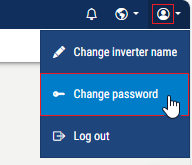
Once you have logged into the Webserver, you can change the password for logging in as plant owner. To do this, go to Change password at the top right in the personal area.
The password must comprise at least 8 characters and include the following characters: lower-case letters (a-z), upper-case letters (A-Z), numbers (0-9) and special characters.
Forgotten Webserver password for logging in as plant owner
If you have forgotten the log-in password, you can create a new one when logging in as plant owner.
- To do this, go to Forgotten password.
- Enter the inverter master key from the type plate
- Enter new password.
- Confirm password
- Confirm input by selecting Save